Save Editor
The Save Editor is a tool that allows you to edit your save file for Tomodachi Life: Living the Dream, giving you the ability to change various aspects of your game, such as giving you items, money or even changing some more advanced data.
How to use the Save Editor
Section titled “How to use the Save Editor”On Living the Dream, you can access the Save Editor directly from your browser by either visiting ltdsave.app or clicking on the button above.
Once you open the Save Editor, you will be asked to upload your save file, you can either upload one of the three save files from your game or upload the entire save folder. After uploading your save file, you will see a simple interface with various tabs that allow you to edit different aspects of your save file.
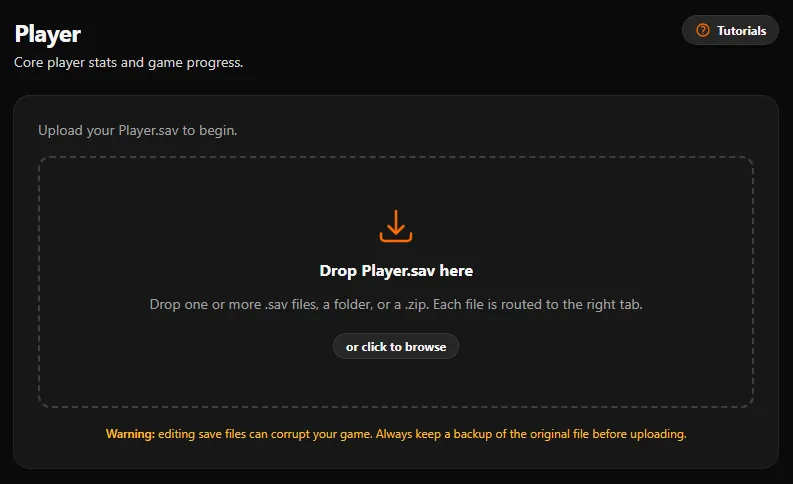
Player Tab
Section titled “Player Tab”In the Player tab, there are various sub-tabs that allow you to edit different aspects of your player data.
Profile
Section titled “Profile”You can edit various aspects of your profile, such as your name, island name, skin tone, island size, money and more.
There are 6 sub-tabs in the Player tab that allow you to edit the items in your inventory, these are:
- Foods: You can edit the foods in your inventory.
- Clothes: You can edit the clothes in your inventory.
- Clothing Sets: You can edit the clothing sets in your inventory.
- Treasures: You can edit the treasures in your inventory.
- Interiors: You can edit the interiors in your inventory.
- Buildings: You can edit the buildings in your inventory.
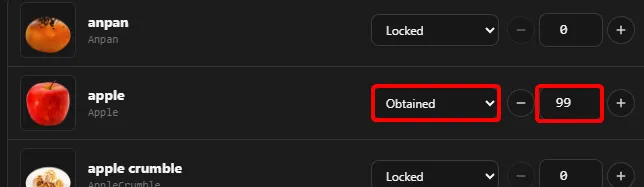
To unlock an item, simply change the state from Locked to Obtained and to edit the quantity, simply change the number next to the Obtained state.
For example, if you want to have 99 Apples, simply change state from Locked to Obtained and change the quantity to 99, as shown in the image below.
Bulk Editing
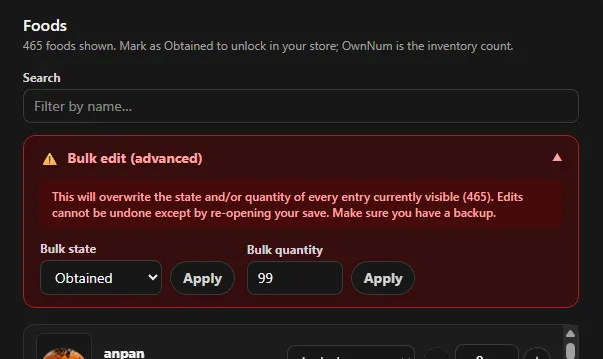
Section titled “Bulk Editing”You can also expand the bulk editing options by clicking on the Bulk Edit, this will allow you to edit the state and quantities of all items at once, as shown in the image below.
Simply set the state to Obtained and the quantity that you want for all items and click on both Apply buttons.
In the UGC sub-tab, you can edit existining Lingos or create new ones by clicking on + Add Slot.
Advanced
Section titled “Advanced”The Advanced sub-tab allows you to edit any entry in your save file, this is recommended for advanced users only, as changing some values can cause issues with your save file.