Editing Texts
MSBT (Message Binary Text) files are used in all Tomodachi Life games to store text data, such as interface, dialogue, items, and other in-game text.
In this guide you will learn how to install and setup MSBT Editor and how to use it to modify your files. This guide is available for multiple Tomodachi Life games, please select the desired game on each section!
In Tomodachi Life: Living the Dream, these files are stored inside a .sarc.zs file in the romfs/Mals folder and are named as {language}.{type}.{version}.sarc.zs, where:
{language}is the Language Code{type}is eitherTrial(if is the Demo version) orProduct(full game){version}is the game version (3rd line inromfs/System/RegionLangMask.txt)
In Tomodachi Life (3DS), these files are store inside .bin files in the romfs/message folder, being organized in folders. There is only one language per ROM, so you’ll only find the language for the ROM you dumped.
Installing MSBT Editor
Section titled “Installing MSBT Editor”MSBT Editor is the primary tool used to editing MSBT files. As it is the most feature-complete and user-friendly tool, also supports a ton of games.
-
Install MSBT Editor and open it.
-
Locate and click on the
Datadrop-down menu (at the very top) and onChange Game Config.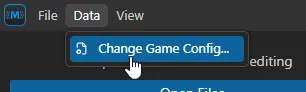
-
Click on
Download Configsand select the desired game(s).default:TomoLife_LtDfor Tomodachi Life: Living the Dreamdefault:TomoLifefor Tomodachi Life (3ds)default:TomoLife_JPfor Tomodachi Life (3ds) (Japanese Version)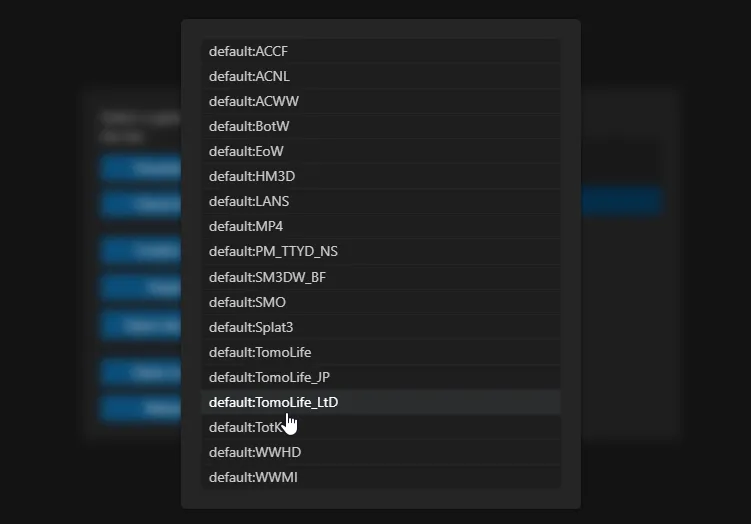
-
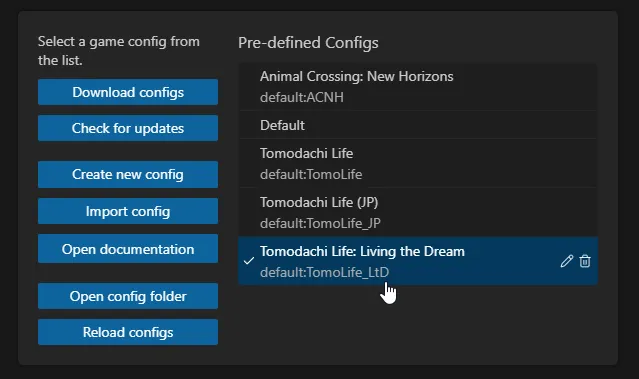
After downloading your desired game(s), go back to the previous screen and select the game you want to edit.
-
Your editor should be ready to use!
Editing
Section titled “Editing”To edit messages is really simple, all you will need to do is localize your language in the romfs/Mals folder and open in the editor, here is a step by step:
-
Open MSBT Editor.
-
Go to
File>Open File...and select the desired language in yourrofms/Malsfolder.You can also open the Mals folder directly, if you plan to edit multiples languages at the same time.
-
Expand the loaded file and find which .MSBT you want to edit.
-
Do your edits and save the file with Ctrl + S.
-
After finishing all yours edits, right click the .sarc file (the root file) and click on
Save. -
You have successfully edited your texts!
To edit messages is really simple, all you will need to do is open your romfs/message folder and open in the editor, here is a step by step:
-
Open MSBT Editor.
-
Go to
File>Open Folder...and select yourrofms/messagefolder. -
Look for for the files you want to edit in the loaded directories and files.
-
Do your edits and save the file with Ctrl + S.
-
After finishing all yours edits, right click the
messagefolder and click onSave. -
You have successfully edited your texts!
References
Section titled “References”Language Codes
Section titled “Language Codes”| Language | Code |
|---|---|
| Canadian French | USfr |
| Latin American Spanish | USes |
| North American English | USen |
| Traditional Chinese | TWzh |
| Korean | KRko |
| Japanese | JPja |
| Dutch | EUnl |
| Italian | EUit |
| European French | EUfr |
| European Spanish | EUes |
| European English | EUen |
| German | EUde |
| Simplified Chinese | CNzh |